How to Add a Seconds Clock to the iPhone Home Screen
Live Seconds Home Screen widgets come in small, medium and large, in transparent, glass and solid styles. Three steps to add one, with fonts and colors to taste.
Published
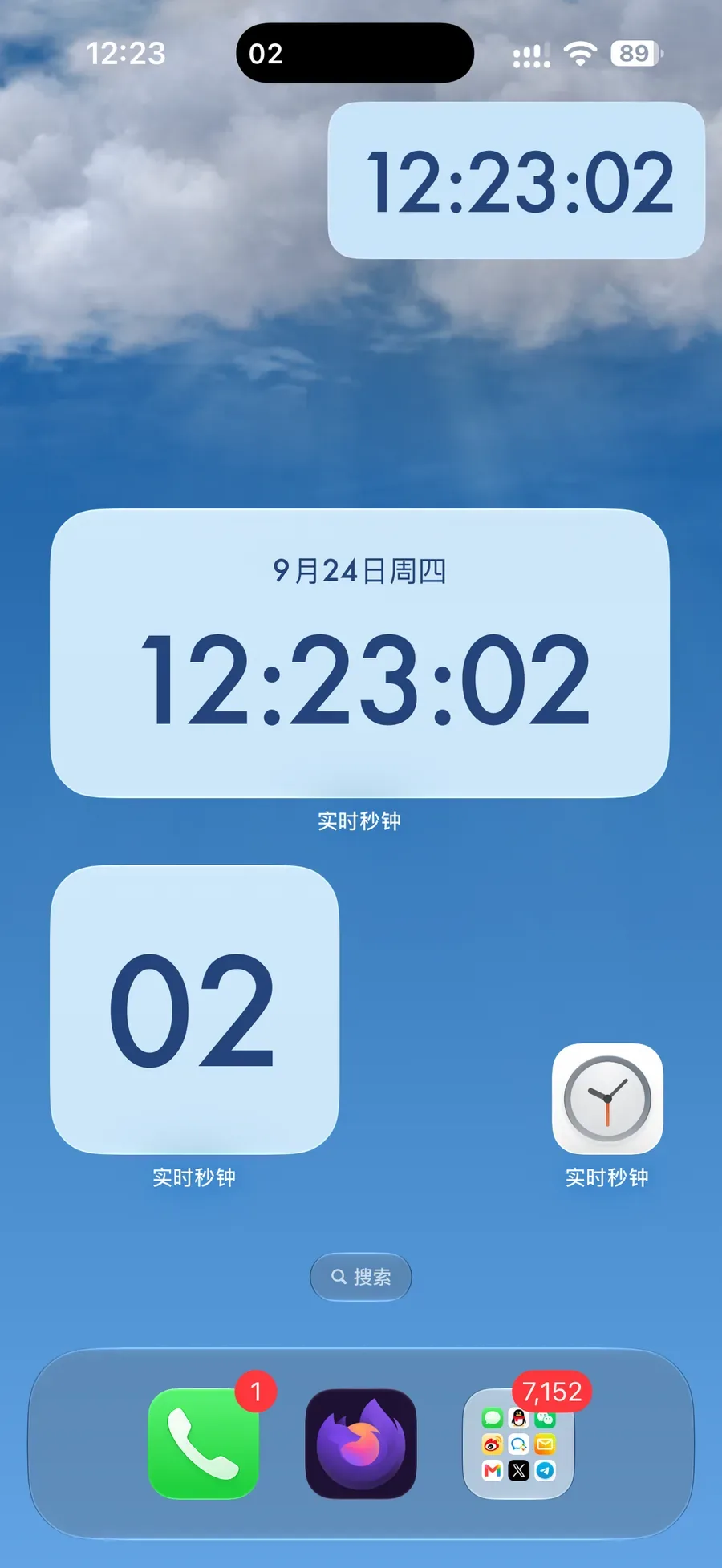
Apple's own Clock widget is an analog face. The second hand does move, but you cannot read "12:23:02" off it at a glance. A clear digital time with seconds on the Home Screen is something iOS simply does not offer.
Live Seconds was built for exactly that. Its Home Screen widgets come in small, medium and large, the seconds tick in real time, fonts and colors are yours to choose, and the widget can be fully transparent.
Three steps
- Install Live Seconds and open it once (iOS 18 or later).
- Touch and hold an empty spot on the Home Screen until the icons jiggle, then tap Edit in the top-left corner and Add Widget.
- Search for "Live Seconds", swipe to pick a size, and tap Add Widget.
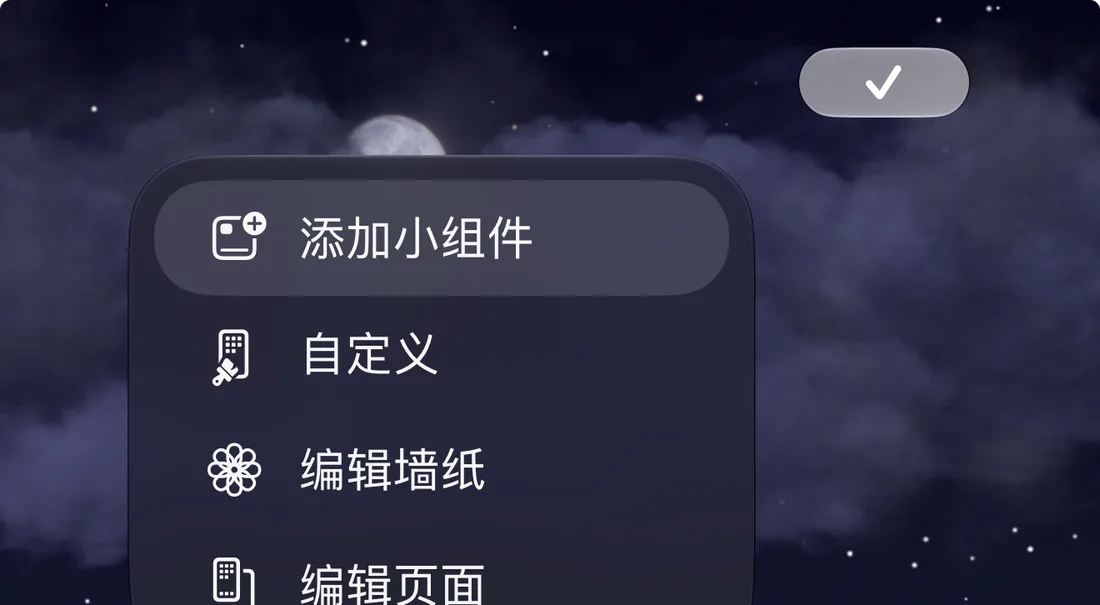
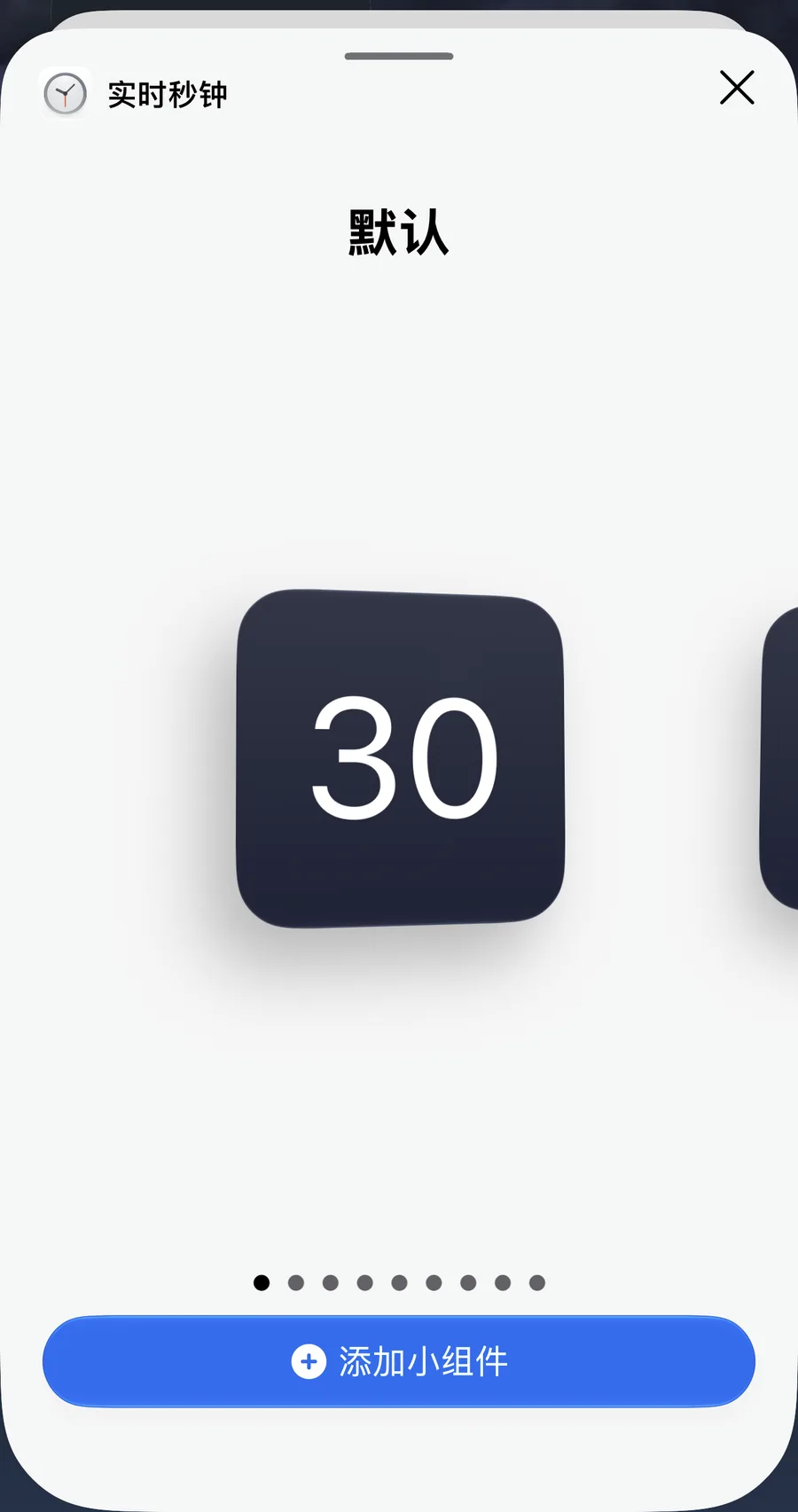
Tap Done and the seconds start ticking. The app settings also have an Add to Home Screen entry at the bottom that takes you straight there.
Which size?
- Small: just the two seconds digits in a 2×2 tile, nice tucked between icons.
- Medium: date plus hours:minutes:seconds on one line, the one most people use.
- Large: bigger digits for the middle of the first page, readable from across the desk.
Want the Home Screen to look like the Lock Screen? There is also a Lock Screen clock style widget with the typography of the native Lock Screen clock, in transparent, glass and solid backgrounds. The transparent one lets the wallpaper through, as if the time were printed on it.
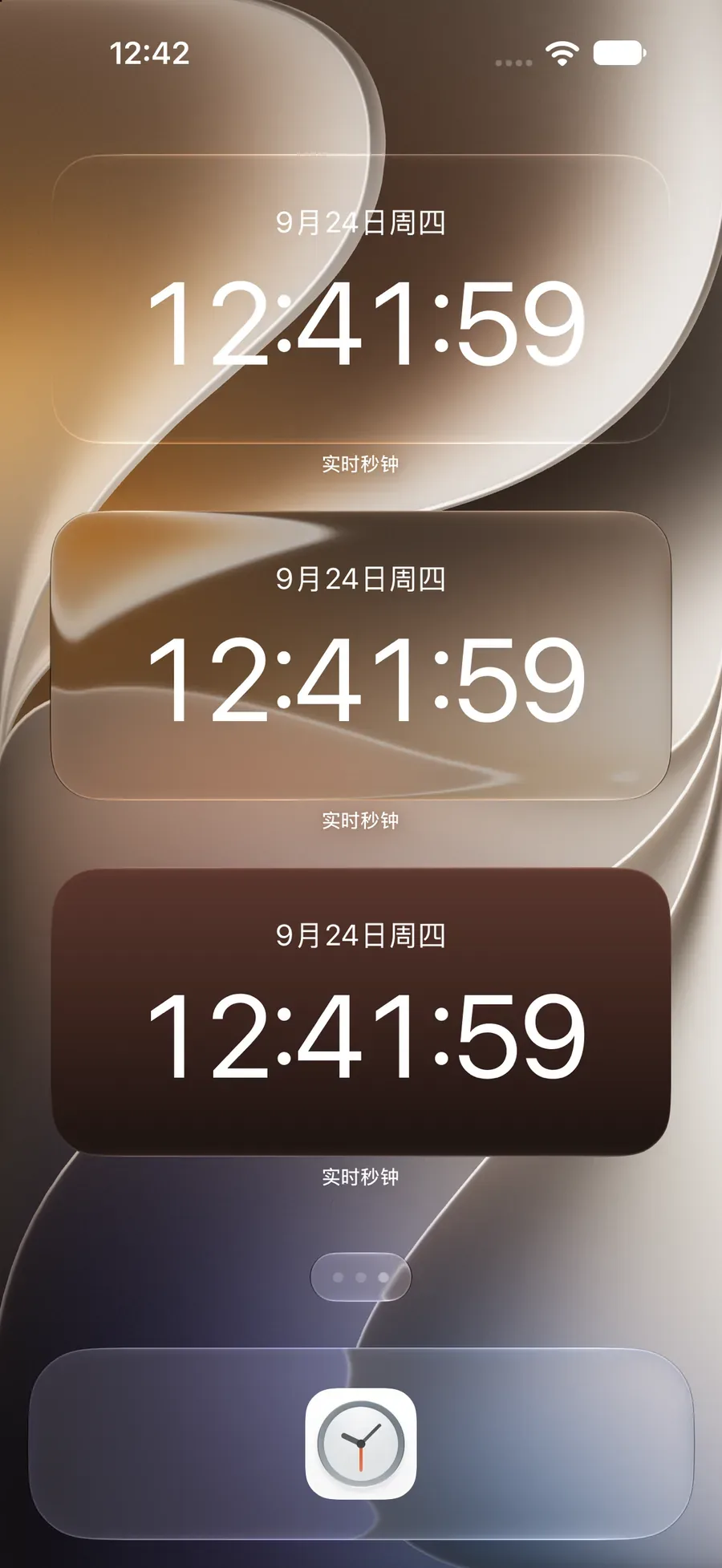
Make it yours
Open the app; every appearance setting is on one screen, and the widgets update as you change them:
- Font: four built-in fonts, plus a "+" to add your own.
- Colors: light, dark or follow the system, with a range of text and background colors including a rainbow gradient.
- Background: gradient, solid, transparent or glass.
- Show Milliseconds: adds a millisecond digit after the seconds, handy for syncing and timed purchases.
- Show Time Zone: prints the current time zone under the time, useful when traveling.
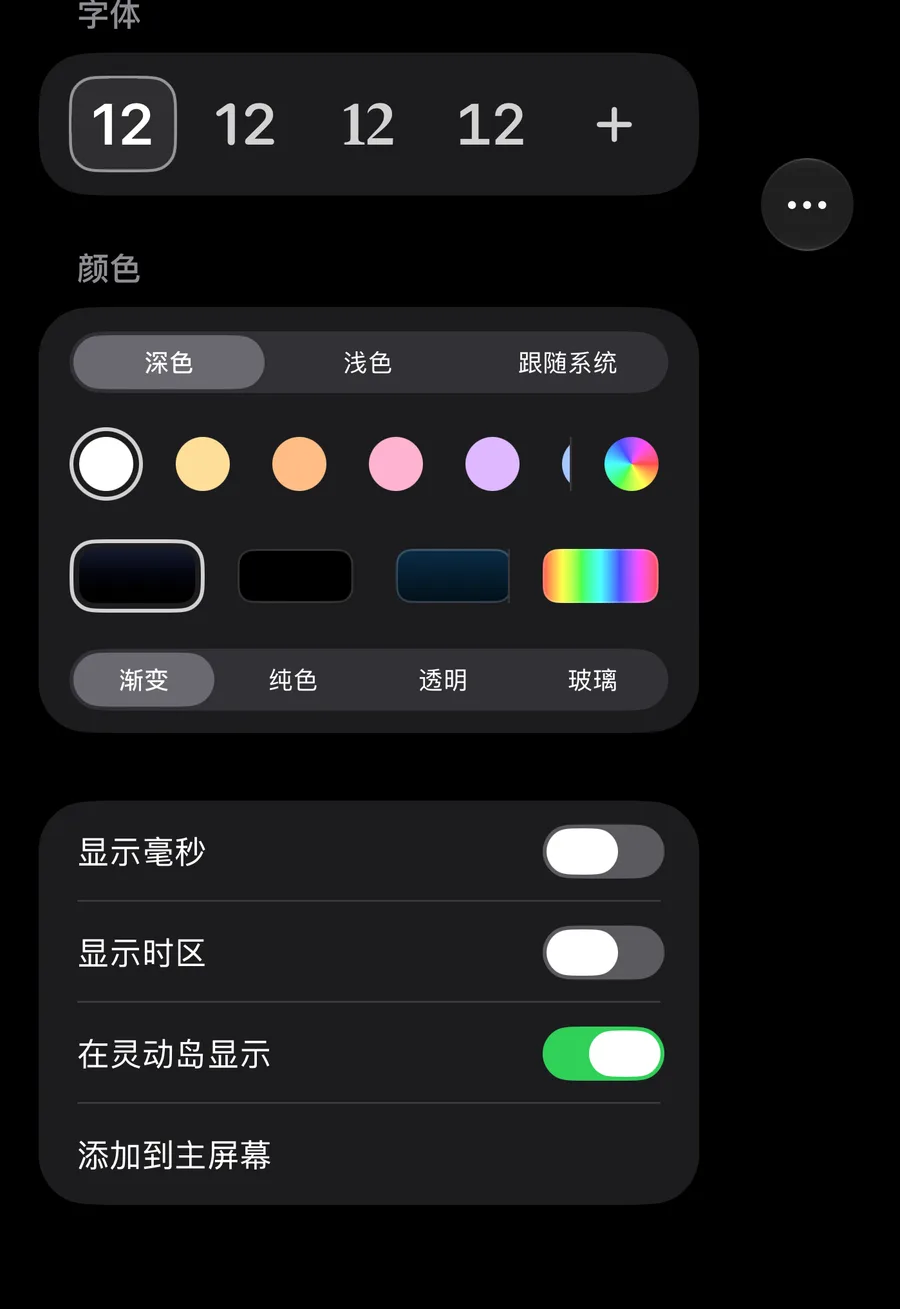
Worth knowing
- The seconds are real. The widget reads the system clock instead of keeping its own time, so it never drifts from the status bar.
- iPad and iPhone Duo too. The same widgets go on the iPad Home Screen, and version 6.0 adds native iPhone Duo support with widgets side by side in landscape.
- Liquid Glass. On iOS 26 and iOS 27 the widgets use the system's own Liquid Glass material and sit naturally next to Apple's widgets.
- Lock Screen, Dynamic Island, Floating Clock. One app puts seconds in every corner of the iPhone; the Home Screen is just one of them.
- No data collection. No servers, no ads, no tracking.
👉 Get it on the App Store: https://apps.apple.com/app/id6779098109
Put seconds on your iPhone
Live Seconds runs on iPhone, iPad and iPhone Duo and needs iOS 18 or later.