How to Add Seconds to the Clock in the Top-Left Corner of Your iPhone
The system time in the top-left corner cannot be changed, but you can put a real ticking seconds counter right next to it. Three ways, one for every iPhone model.
Published
"Can the clock in the top-left corner show seconds?"
It is the most common question people ask about seconds apps. The answer has two halves. The system digits in that corner cannot be changed; Apple does not expose them. But you can put a real ticking seconds counter next to them, above them or below them, and in practice that is the same thing as "seconds in the corner".
Here are three ways. Pick the one that fits your iPhone.

Method 1: Seconds in the Dynamic Island, on the same row as the clock
For iPhone 14 Pro and every later model with a Dynamic Island.
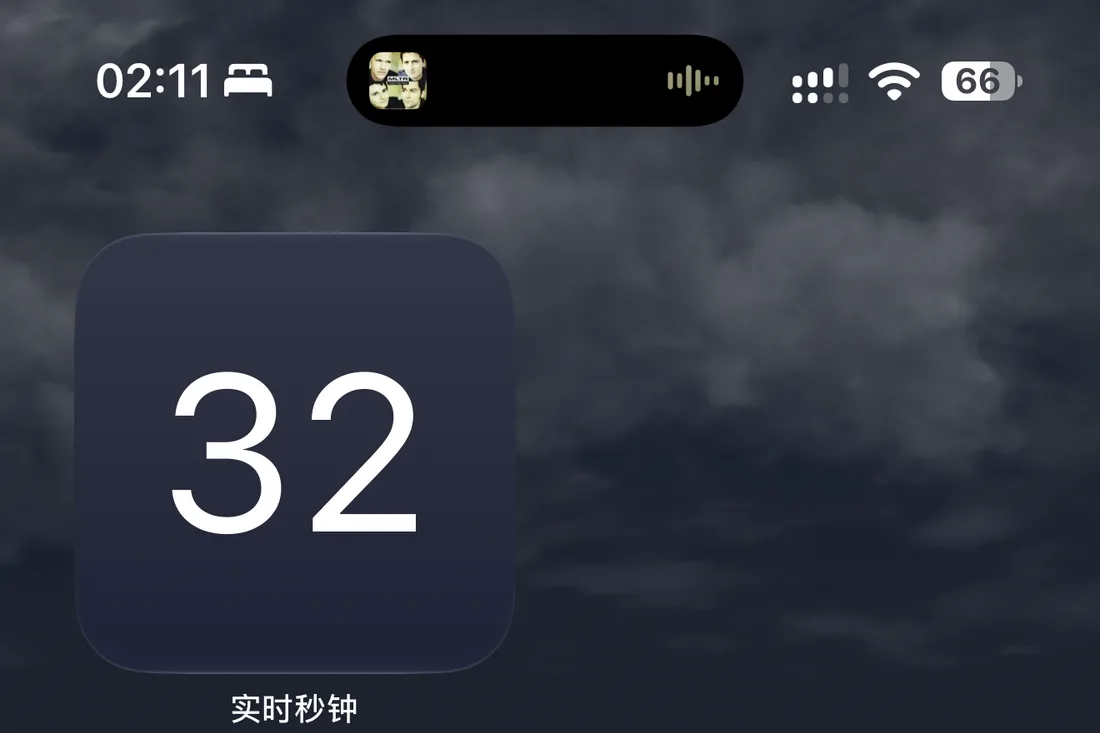
Open Live Seconds and turn on Show in Dynamic Island. The island immediately starts ticking seconds on the same row as the hours:minutes in the corner. One glance gives you the full time.

This is the lowest-effort option: it takes no Home Screen space, shows on the Lock Screen, the Home Screen and inside every app, and a long press expands it to the full time with milliseconds.
Method 2: Drag the Floating Clock into the corner
For every iPhone, including models without a Dynamic Island such as the iPhone 14, iPhone 13, iPhone SE and iPhone 16e.
In the Live Seconds settings, turn on Floating Clock. A small Picture-in-Picture window with hours:minutes:seconds appears on screen. Drag it into the top-left corner so it sits right under the system time, and the status bar looks like it has seconds built in.
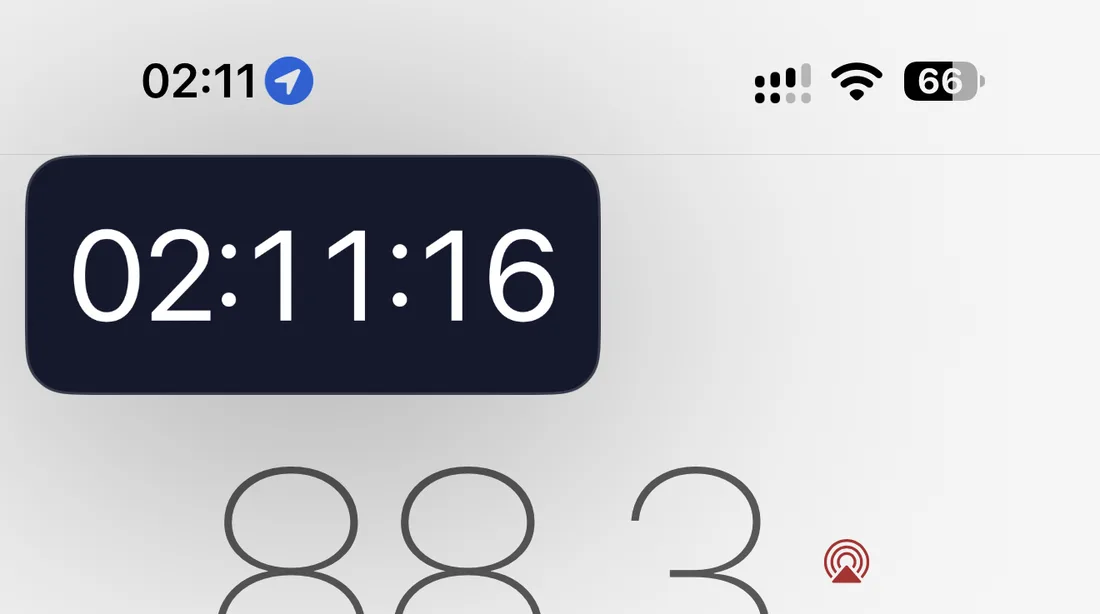
The window stays on top of every app, which makes it ideal for a countdown you watch while refreshing a page. When you are done, tap the close button on the window, or the return button to jump back into the app.
Method 3: A seconds tile in the first Home Screen slot
For people who only check the time on the Home Screen.
Touch and hold an empty spot on the Home Screen, tap Edit, then Add Widget, search for "Live Seconds", pick the small size and add it. Drag it into the first slot of the first row.
The small widget shows just the two seconds digits. Font and colors are set inside the app, and the Transparent style lets your wallpaper show through, so the corner gets a quiet ticking counter and nothing else.
Which one?
| iPhone | Pick |
|---|---|
| Has a Dynamic Island | Method 1, one switch, visible everywhere |
| No Dynamic Island | Method 2, Floating Clock in the corner |
| Just want a nicer Home Screen | Method 3, a transparent widget |
The three can be combined; they do not interfere with each other.
About Live Seconds
- Seconds are read from the system clock, so they match the corner time exactly
- iOS 18 and later; native Liquid Glass on iOS 26 and iOS 27
- iPhone, iPad and iPhone Duo, in 13 languages
- No data collection, no ads
👉 Get it on the App Store: https://apps.apple.com/app/id6779098109
Put seconds on your iPhone
Live Seconds runs on iPhone, iPad and iPhone Duo and needs iOS 18 or later.