How to Show Seconds in the Dynamic Island Clock on iPhone Duo
On iPhone Duo the Dynamic Island sits in the top-right corner, right above the system clock. Live Seconds 6.0 supports iPhone Duo natively: turn on "Show in Dynamic Island" and the vertical island keeps ticking seconds, portrait or landscape.
Published
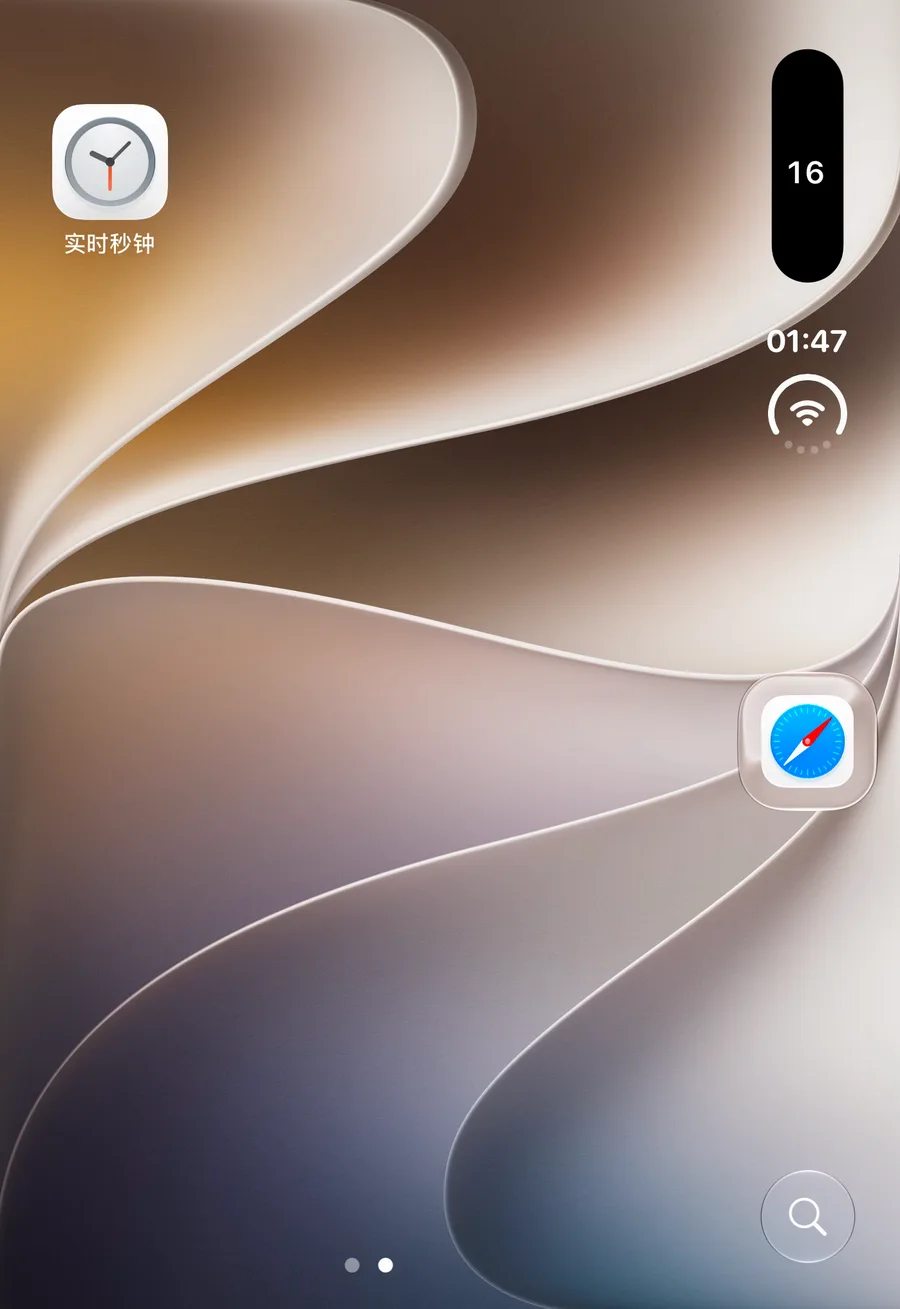
The iPhone Duo screen is nearly square, and one of the biggest differences from a regular iPhone is the top edge: the Dynamic Island is not in the middle. It shrinks to a vertical pill in the top-right corner, with the system time directly underneath.
That corner is actually a better place for seconds than a regular iPhone has: time and seconds stack in one spot, so your eyes never sweep across the screen. Since version 6.0, Live Seconds supports iPhone Duo natively, with the island, the widgets, the settings and Nightstand Mode all laid out for its display.
What you need
- An iPhone Duo. It ships with iOS 27, so the Liquid Glass design of Live Seconds is native on it and no system update is needed.
- Live Seconds 6.0 or later. Earlier versions were not adapted to iPhone Duo and sometimes hid the "Show in Dynamic Island" option.
Setup
- Install Live Seconds from the App Store, or update it to 6.0 or later.
- Open the app. On iPhone Duo the settings have room to spare: fonts, colors and switches fit on one screen.
- Turn on Show in Dynamic Island.
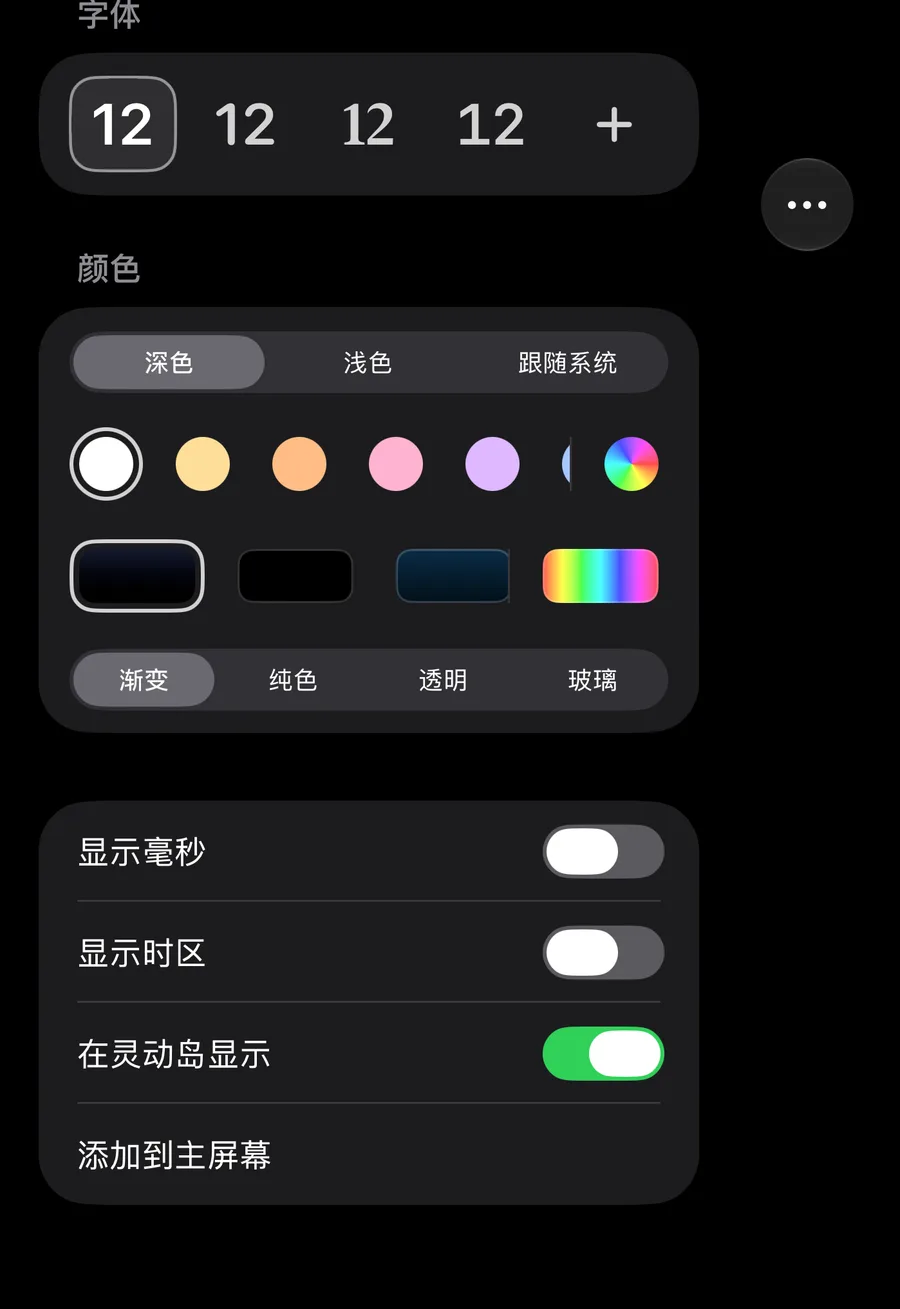
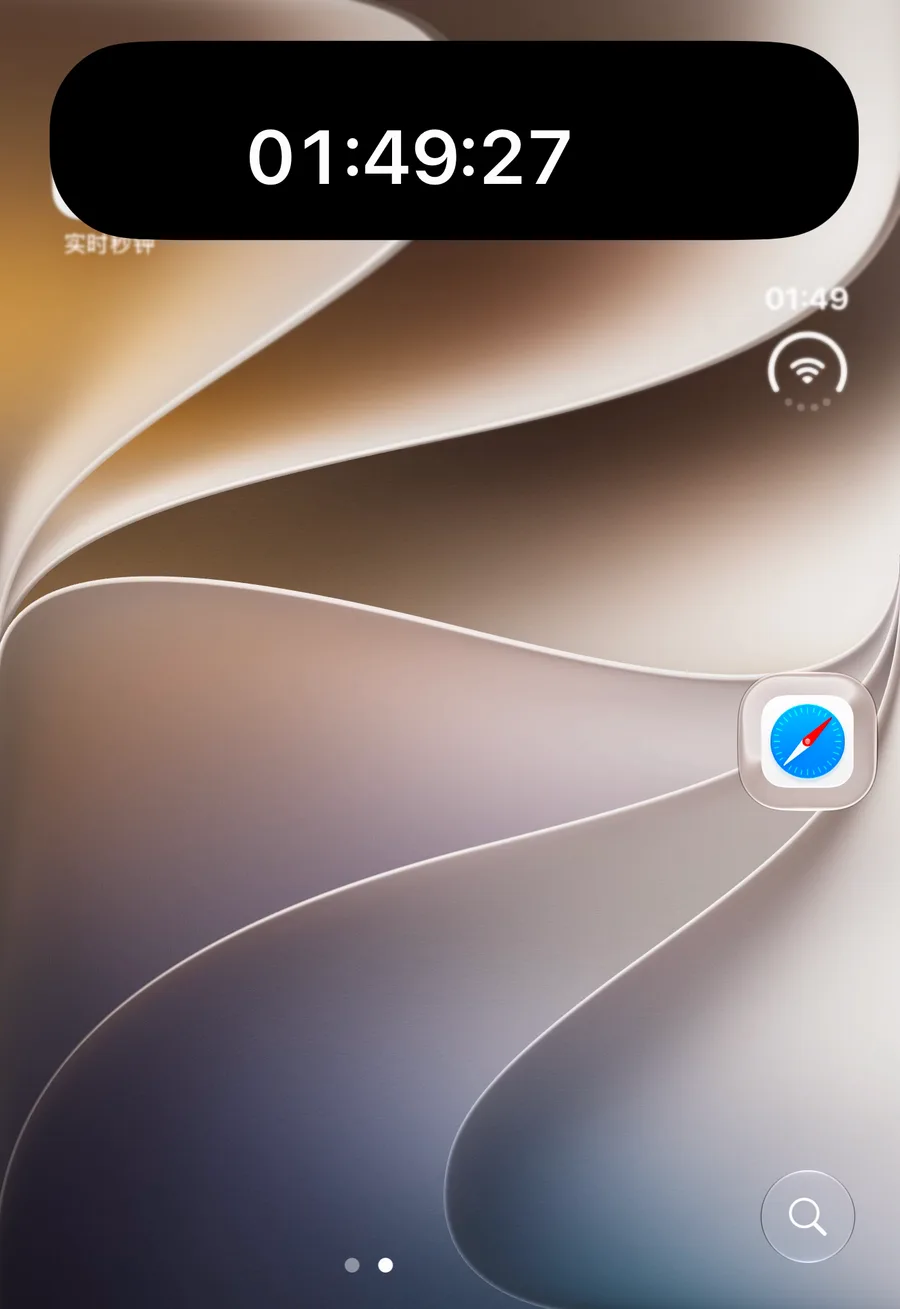
The moment the switch flips, two seconds digits appear in the vertical island in the top-right corner. Together with the system time below it, that is the full hours:minutes:seconds. Go to the Home Screen or into any app: they stay.
Portrait and landscape alike
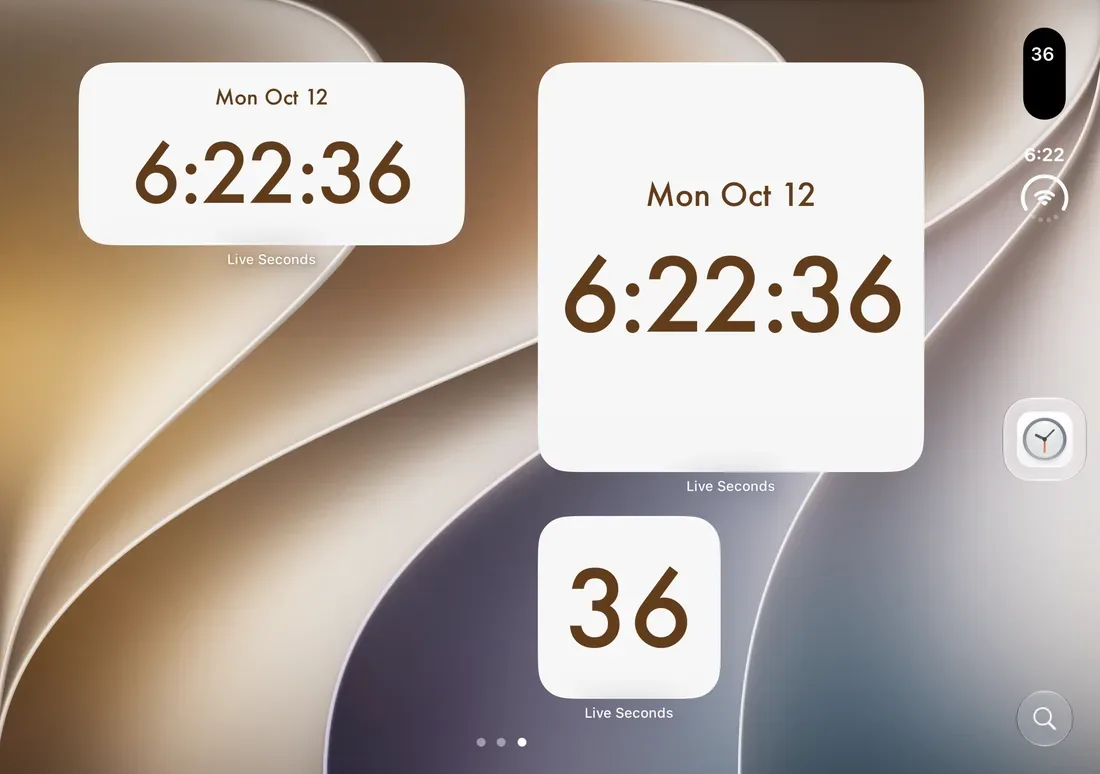
Turn the iPhone Duo sideways and the island and status bar stay in the top-right corner, so the seconds turn with them instead of ending up somewhere you cannot see. In landscape the Live Seconds widgets sit side by side: a medium one with the date on the left, a large one on the right, and the island ticking above them. Three kinds of seconds on one page.
Full time and milliseconds
Press and hold the island and it expands into a wide card with the complete hours:minutes:seconds. Turn on Show Milliseconds in the settings and the expanded card shows milliseconds ticking. Version 6.0 fixed millisecond display in the island on iOS 27, so iPhone Duo users get the fixed version from the start.
Add the Lock Screen while you are at it
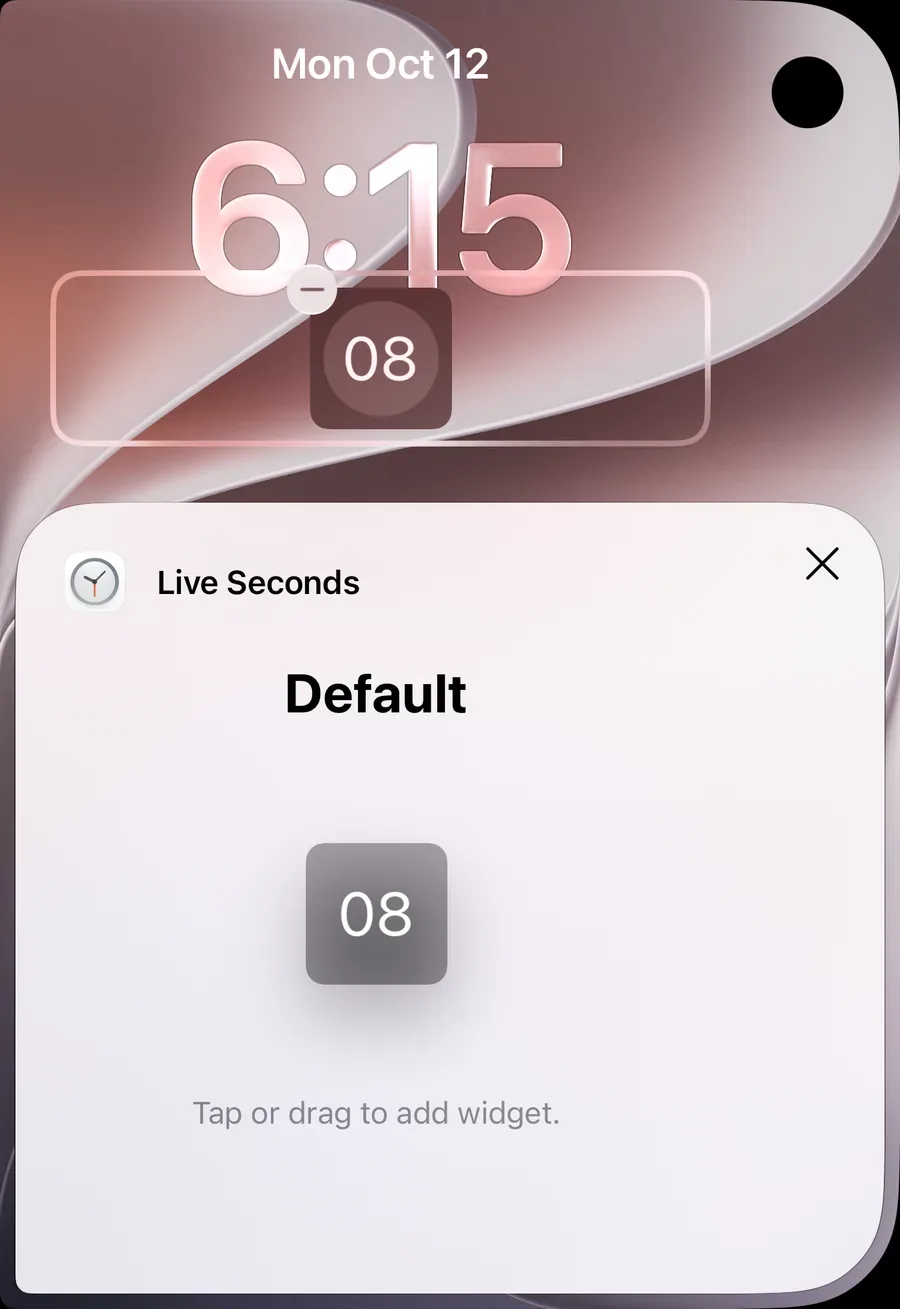
The iPhone Duo Lock Screen takes widgets too. Touch and hold the Lock Screen, tap Customize, then Lock Screen, tap the widget area below the clock and choose Live Seconds: a circular seconds counter appears under the clock.
FAQ
The seconds in the island disappeared.
iOS limits how long a Live Activity can run. Open Live Seconds and flip Show in Dynamic Island off and on again.
I want a clock I can drag around.
Turn on Floating Clock. It is a small Picture-in-Picture window you can drag anywhere on the big iPhone Duo screen, and it runs alongside the island clock.
Does it drain the battery?
Live Activities are a system feature and use very little power. The app makes no background network requests and collects no data.
Summary
On iPhone Duo the Dynamic Island and the system clock share one corner, which makes it the natural home for seconds. Update to Live Seconds 6.0, flip one switch, and the top-right corner shows the full hours:minutes:seconds from then on.
👉 Get it on the App Store: https://apps.apple.com/app/id6779098109
Put seconds on your iPhone
Live Seconds runs on iPhone, iPad and iPhone Duo and needs iOS 18 or later.