How to Show Seconds in the iPhone Dynamic Island
Turn on "Show in Dynamic Island" in Live Seconds and the island keeps ticking seconds; press and hold for the full time and milliseconds. iPhone 14 Pro and later.
Published
The Dynamic Island only has something to show while music plays, a timer runs or directions are active. The rest of the time it is a black pill. Yet its position is unbeatable: the very top of the screen, right beside the status bar clock, visible inside every app.
Put seconds in it and the iPhone gains a global hours:minutes:seconds. That is what Live Seconds does.

Supported models
iPhone 14 Pro, 14 Pro Max and every later model with a Dynamic Island (all iPhone 15 models, and the iPhone 16 and 17 lines except the "e" models), on iOS 18 or later. Models without a Dynamic Island can use the same app's Floating Clock; see the end of this guide.
Setup
- Install Live Seconds from the App Store.
- Open the app and scroll down to the settings.
- Turn on Show in Dynamic Island.
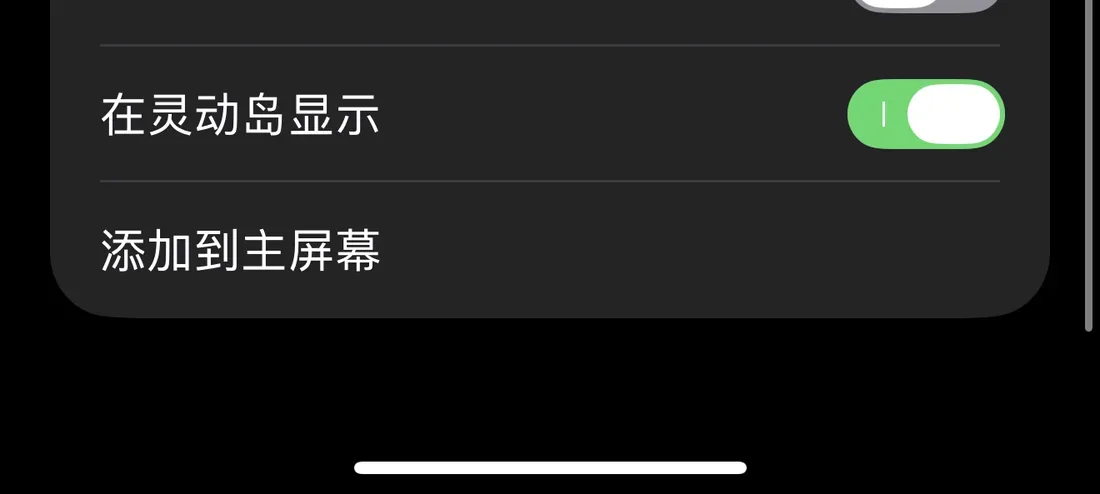
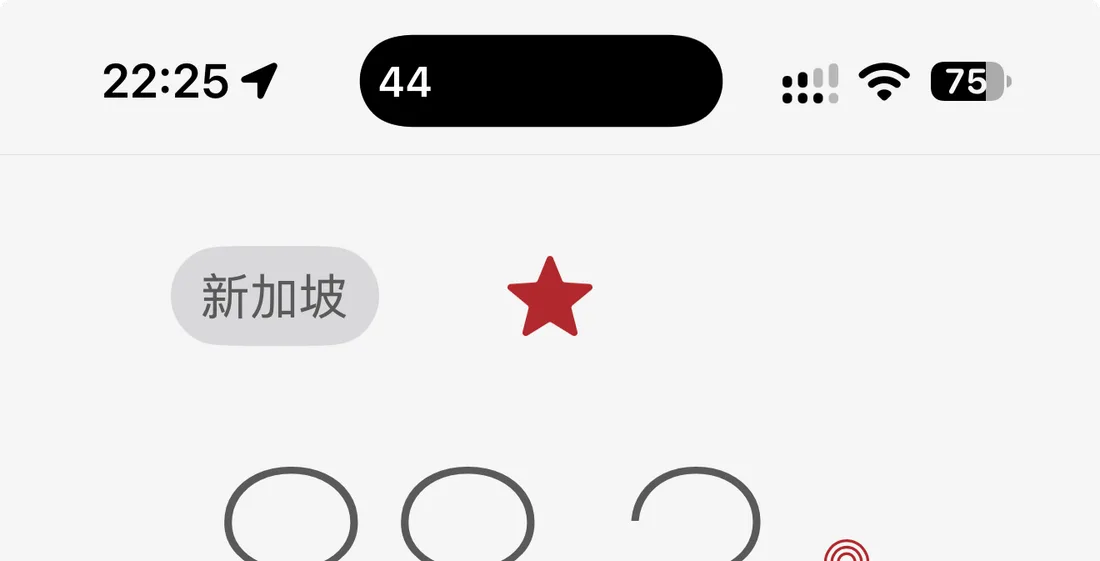
The moment the switch flips, two seconds digits start ticking in the island. Go to the Home Screen, open any app: they stay.
Two states
- Compact: only the seconds in the island. Combined with the system clock on the left, that is the full hours:minutes:seconds in almost no space.
- Expanded: press and hold the island and it expands into a wide card with the complete hours:minutes:seconds.
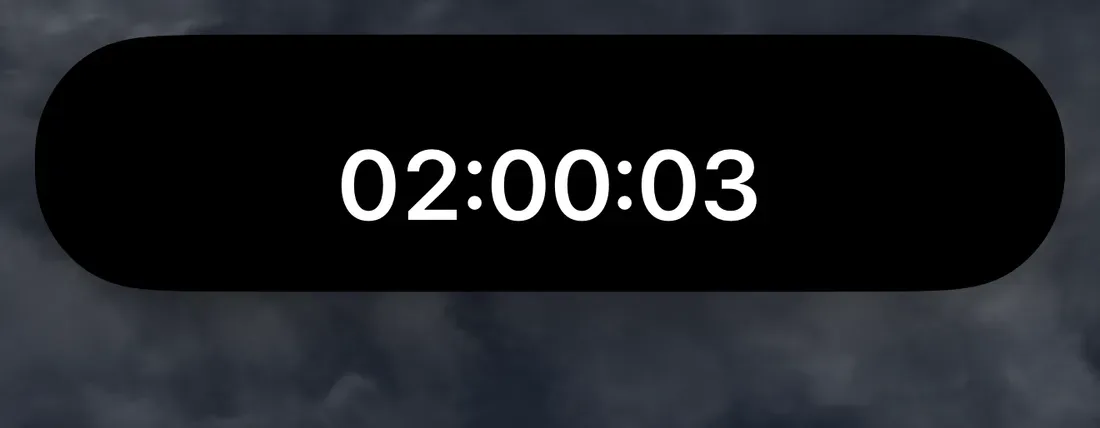
Milliseconds?
Turn on Show Milliseconds in the settings and the expanded card gains a millisecond digit. Version 6.0 fixed millisecond display in the island on iOS 27, so update if yours looks off.
Pair it with the Floating Clock
The Dynamic Island clock and the Floating Clock can run together. The island stays parked at the top; the Floating Clock is a Picture-in-Picture window you can drag anywhere, for example right next to a "Buy now" button so your eyes never leave it.
Phones without a Dynamic Island simply use the Floating Clock; it also stays on top of every app.
Shortcuts and Siri
Since 6.0, Live Seconds actions appear in the Shortcuts app and in Siri, ready for your own shortcuts and automations. Build a "drop mode" shortcut that turns on the island clock and milliseconds at a set time, for example.
FAQ
I cannot find the "Show in Dynamic Island" switch.
Check that your model has a Dynamic Island and update the app to 6.0 or later; older versions sometimes hid the option, which 6.0 fixed.
The clock in the island disappeared.
iOS limits how long a Live Activity can run. Open Live Seconds and flip the switch off and on again.
Does it drain the battery?
Live Activities are a system feature and use very little power, about as much as a Now Playing card. The app makes no background network requests and collects no data.
Summary
One switch turns the black pill into a stopwatch that never stops. Together with the same app's Lock Screen widgets, Home Screen widgets and Floating Clock, seconds show up everywhere you look at your iPhone.
👉 Get it on the App Store: https://apps.apple.com/gb/app/id6779098109
Put seconds on your iPhone
Live Seconds runs on iPhone, iPad and iPhone Duo and needs iOS 18 or later.