How to Show Seconds in the iPhone Status Bar Clock
iOS has no setting for seconds in the status bar clock. Live Seconds puts a ticking seconds counter in the Dynamic Island right next to it, or in a floating clock on any iPhone. No jailbreak, three taps.
Published
Ticket drops, flash sales, timed check-ins, syncing a stopwatch: there are moments when one second is the whole difference. And yet the clock in the top-left corner of your iPhone says "12:23" and nothing more. Where are the seconds?
You can search the Settings app all day. There is no switch. This guide explains why, then shows you the one approach that actually works.

The short answer: the status bar clock cannot show seconds
Apple has never offered seconds in the iOS status bar clock, and Settings → General → Date & Time has no option for it. The "accessibility trick" and "configuration profile" tutorials floating around are either outdated or jailbreak methods. Not worth it.
But the status bar row is not only the system clock. The Dynamic Island sits in the middle of that same row, and third-party apps are allowed to put live content there. In other words: you cannot change the system clock, but you can put a ticking seconds counter right beside it.
That is exactly what Live Seconds does.
Method 1: Seconds in the Dynamic Island (recommended)
Works on every iPhone with a Dynamic Island (iPhone 14 Pro and later).
- Install Live Seconds from the App Store (iOS 18 or later).
- Open the app and scroll down to the settings.
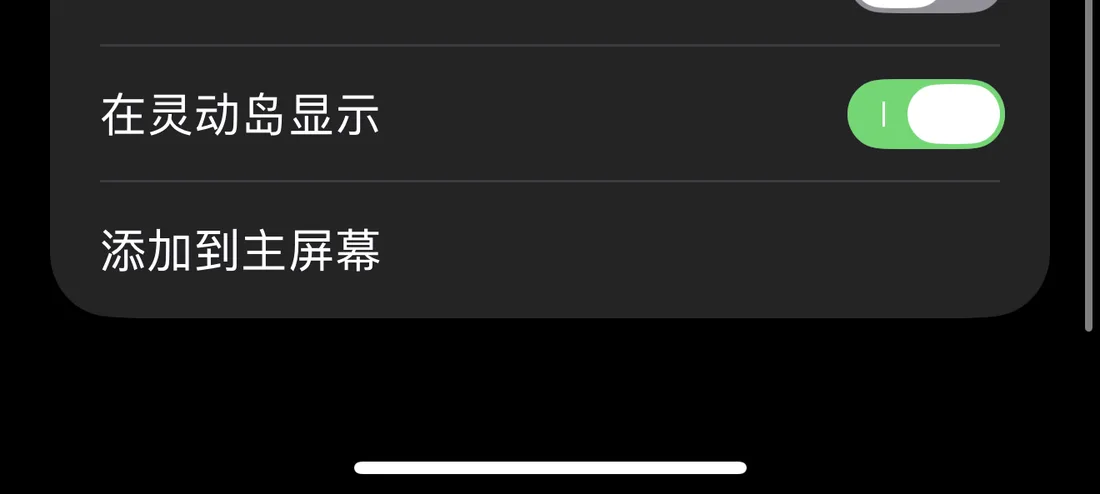
- Turn on Show in Dynamic Island.
That is all. Go back to the Home Screen or into any app: the Dynamic Island now shows a two-digit counter ticking away, lined up with the system clock on the left. "12:23" plus "02" in the island reads as 12:23:02.

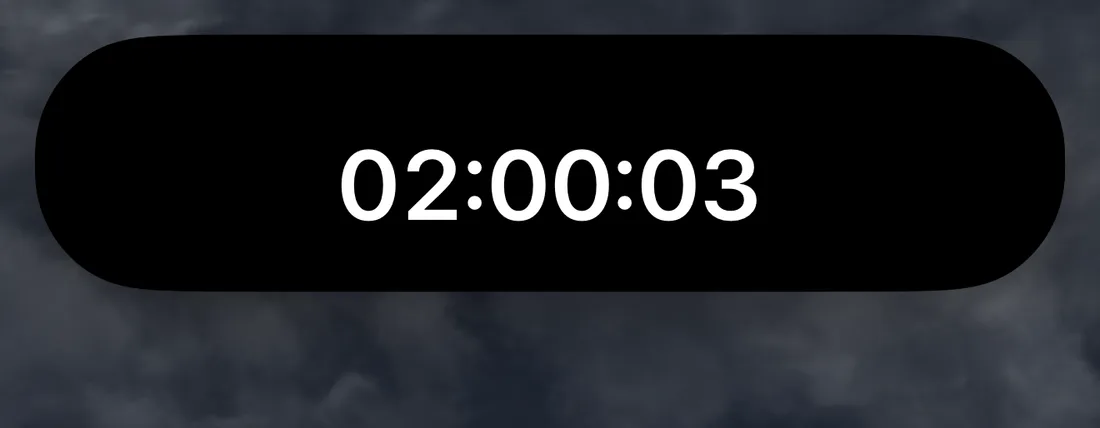
Need the full time? Press and hold the Dynamic Island and it expands into a wide card with the complete hours:minutes:seconds. Turn on Show Milliseconds too and the expanded card shows milliseconds ticking.
Method 2: No Dynamic Island? Use the Floating Clock
iPhone 14 and earlier non-Pro models, the iPhone SE and the iPhone 16e have no Dynamic Island, but they can still keep seconds on screen.
In the Live Seconds settings, turn on Floating Clock. A small Picture-in-Picture window appears with the live hours:minutes:seconds. Drag it into any corner; it stays on top while you switch to Safari, Messages, a ticketing app, anything. Done with it? Tap the close button on the window.
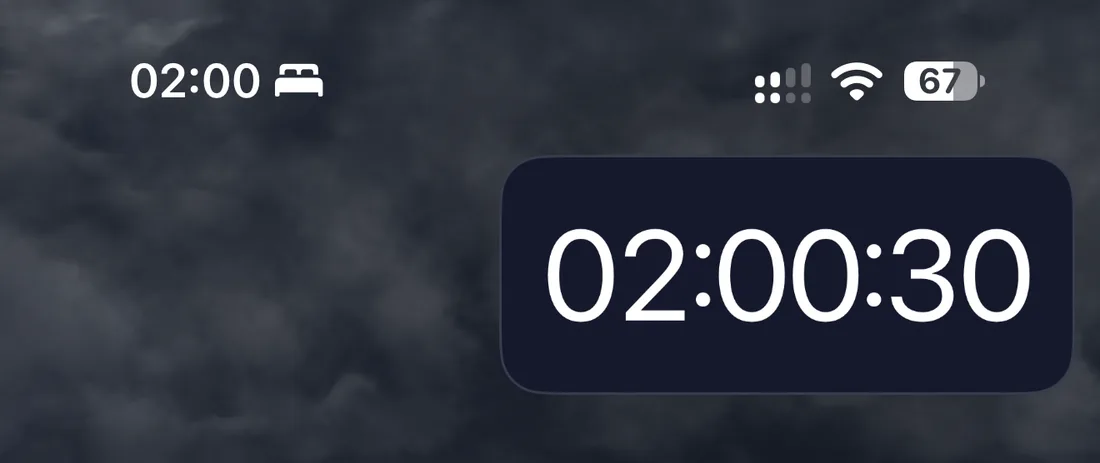
The Dynamic Island clock and the Floating Clock can run at the same time: one parked at the top, one dragged next to whatever you need to watch.
A few details
- Always in sync. The seconds come straight from the system clock, so they never drift from the time in the status bar.
- No data, no network. The app has no servers. Everything runs on your phone, and the privacy policy is one line long: nothing is collected.
- Native Liquid Glass on iOS 26 and iOS 27. The widgets and the app use the system material, so they look like they shipped with the phone.
- Lock Screen and Home Screen too. The same app has Lock Screen and Home Screen widgets, so seconds can be wherever you look.
Summary
The system clock in the status bar will not show seconds; that is an iOS limit. The Dynamic Island and the Floating Clock will. Install Live Seconds, flip one switch, and stop guessing.
👉 Get it on the App Store: https://apps.apple.com/gb/app/id6779098109
Put seconds on your iPhone
Live Seconds runs on iPhone, iPad and iPhone Duo and needs iOS 18 or later.