How to Show Seconds on the iPhone Lock Screen
Put a live seconds widget above or below the Lock Screen clock. Touch and hold, Customise, add Live Seconds. About one minute, iOS 18 and later.
Published
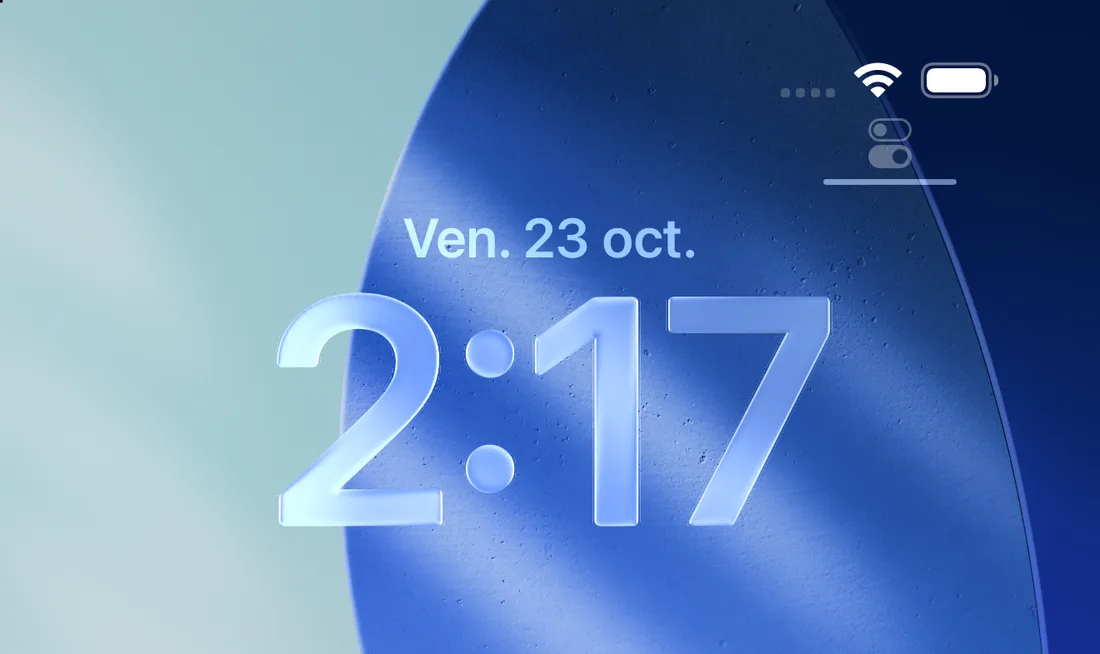
You probably wake your iPhone to check the time more often than you open any single app. But the two big numbers on the Lock Screen only give you hours and minutes. To know which second it is, you unlock, find an app, and come back.
Since iOS 16 the Lock Screen has had widget slots. With Live Seconds installed, a live seconds counter goes right above or below the clock, visible the moment you raise the phone.
Before you start
- Install Live Seconds from the App Store (iOS 18 or later).
- Open it once so iOS registers its widgets.
Spot 1: The widget row below the clock
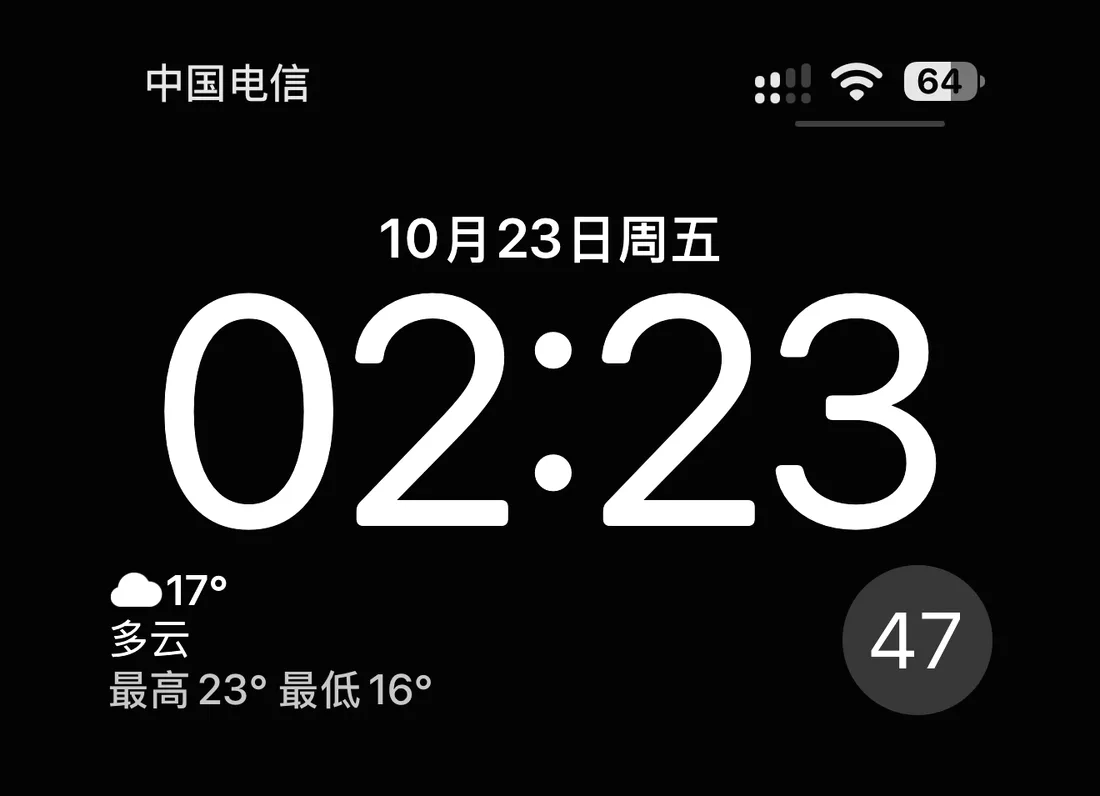
The most visible widget position on the Lock Screen, for a circular or rectangular seconds widget.
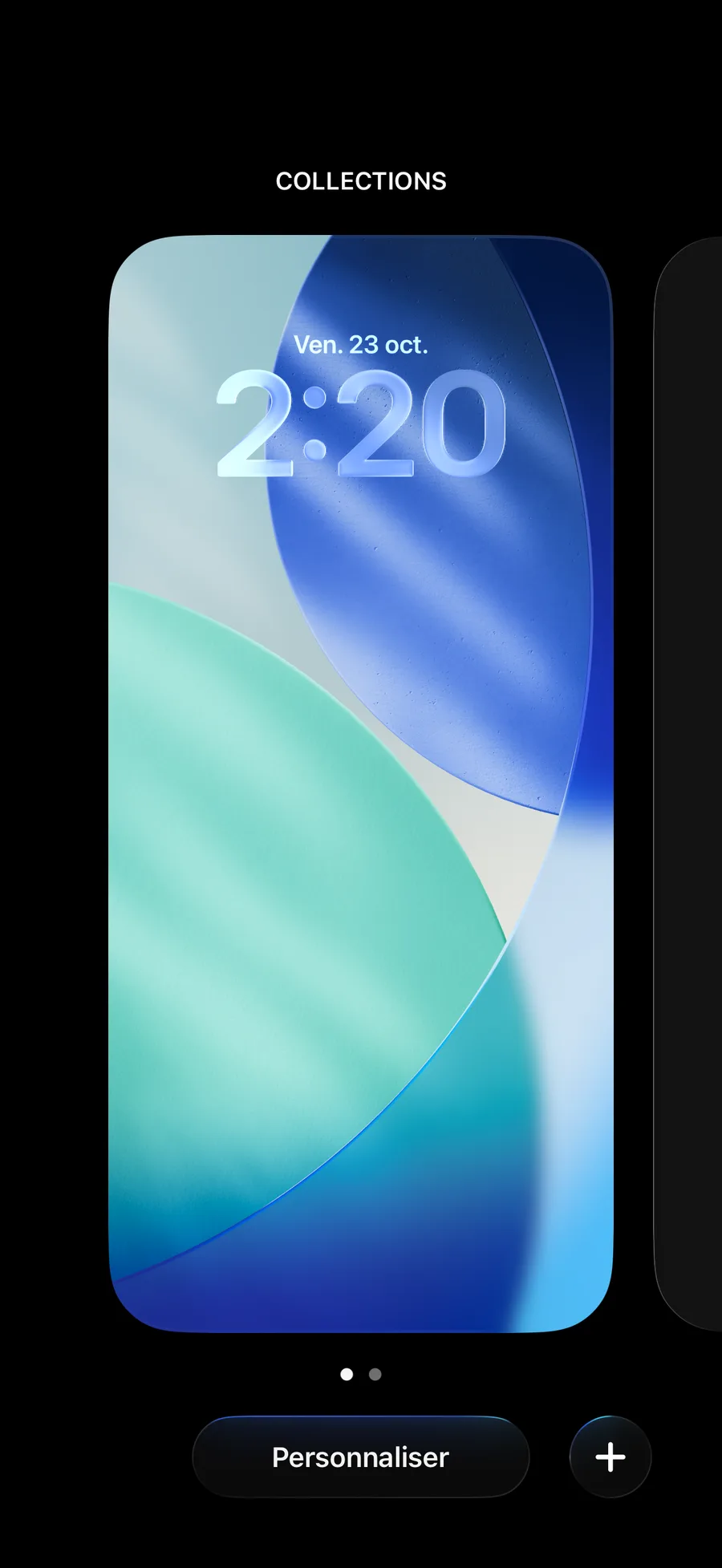
- Wake and unlock the phone, but stay on the Lock Screen. Touch and hold an empty area.
- Tap Customise at the bottom, then Lock Screen.
- Tap the Add Widgets area below the clock.
- Find Live Seconds in the list and tap it, or drag it into the row.
- Tap Done in the top-right corner.
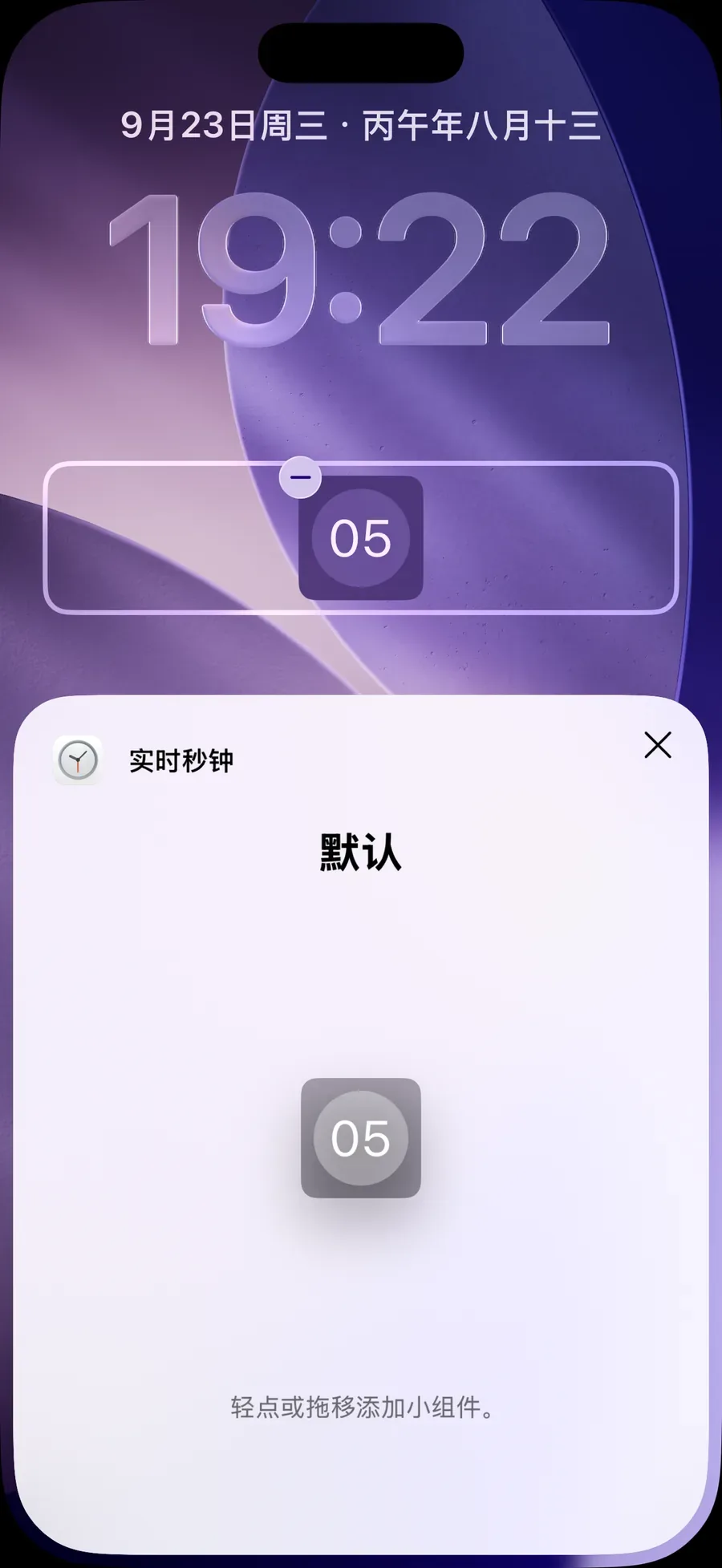
Back on the Lock Screen, a seconds counter is now ticking under the clock.
Spot 2: The inline slot above the clock
The line right above the clock shows the date by default, but it is a widget slot too, called the inline widget.
On the same Customise → Lock Screen screen, tap the date line above the clock and choose the inline Live Seconds widget. It shows the seconds as a single thin line of text, leaving the row below the clock free, which suits anyone who likes a clean Lock Screen.
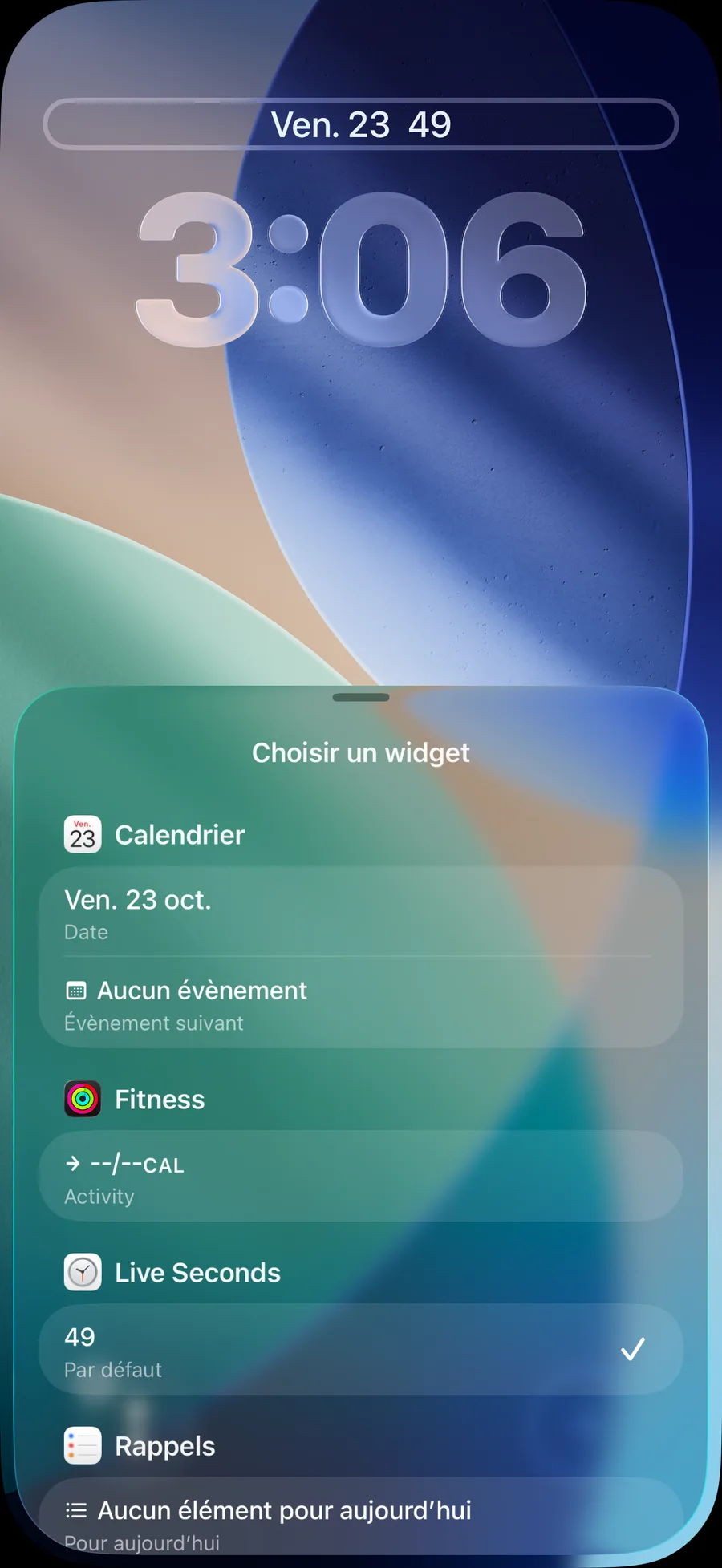
Both spots work at once: inline seconds above, a larger circular counter below. Whatever looks right to you.
Tips
- Matches your Lock Screen. Lock Screen widgets follow the tint of your Lock Screen, so they still fit when you change wallpaper or colour.
- One setup per Lock Screen. iOS lets you keep several Lock Screens. Give the "Work" one seconds, leave the "Sleep" one empty, and swipe between them.
- Do the Home Screen while you are at it. The same app has a Home Screen widget in a Lock Screen clock style, in transparent, glass and solid variants, so Lock Screen and Home Screen can match.
Why Live Seconds
It does one thing: put accurate seconds in every corner of your iPhone. Lock Screen, Home Screen, Dynamic Island, Floating Clock, full-screen Bedside Mode, all in one app. Native Liquid Glass on iOS 26 and iOS 27, and no data collection.
👉 Get it on the App Store: https://apps.apple.com/gb/app/id6779098109
Put seconds on your iPhone
Live Seconds runs on iPhone, iPad and iPhone Duo and needs iOS 18 or later.